How to Send Automated Messages on WhatsApp: Business Basics
TL;DRSending automated messages on WhatsApp is simple only when the job is simple. A greeting message, away message, or quick reply can help a small business answer faster. A growing ecommerce store needs more than that: customer opt-ins, approved templates, store-event triggers, timing rules, stop rules, reply handoff, and reporting.
That distinction matters because "automated WhatsApp messages" can mean four different things. It can mean an auto reply inside the WhatsApp Business app. It can mean a saved quick reply typed by a team member. It can mean an API-backed message template. Or it can mean a Shopify automation that sends the right message after a checkout, order, delivery, review, winback, reorder, or upsell event.
This guide explains the practical path: choose the right automation route, define the workflow, write the message, check consent and template rules, test the send, and measure whether it actually helped the business.
The Short Answer
To send automated messages on WhatsApp for a business, you need to decide which type of automation you mean.
| Automation type | What it does | Best fit |
|---|---|---|
| Greeting or away message | Sends a basic automatic reply when someone starts a chat or messages outside working hours | Small businesses handling manual conversations |
| Quick reply | Lets a team member insert saved text manually | Repeated support answers, size charts, return policies, delivery questions |
| WhatsApp Business Platform/API template | Sends approved business-initiated messages through connected software | Order updates, reminders, marketing messages, authentication, customer-care workflows |
| Shopify WhatsApp automation | Sends messages from store events with timing, segments, stop rules, and revenue tracking | Abandoned checkout, COD confirmation, shipping updates, review requests, reorder reminders, winback, upsell |
If you only need to acknowledge inbound chats, the WhatsApp Business app may be enough. If you want messages to go out from Shopify customer and order events, you usually need an API-backed tool or a Shopify WhatsApp automation app.
What Counts As An Automated WhatsApp Message?
An automated WhatsApp message is any message sent or prepared by a rule instead of being written from scratch in the moment.
For ecommerce teams, the useful version has seven parts.
| Part | Example |
|---|---|
| Trigger | Checkout abandoned, order placed, shipment created, product delivered, customer inactive |
| Audience | Customers with WhatsApp opt-in, matching order state, and no active suppression |
| Timing | Send 30 minutes after checkout abandonment, or three days after delivery |
| Message | Approved template, service reply, or saved response that matches the use case |
| Stop rule | Stop after purchase, cancellation, refund, opt-out, reply, or support escalation |
| Owner | The team or inbox that handles replies |
| Metric | Recovered revenue, confirmed COD orders, support tickets avoided, reviews collected, repeat purchases |
Without those parts, automation becomes risky. The store may send stale reminders after a purchase, promotional messages to customers who only wanted delivery updates, or replies that nobody on the team owns.
Pick The Right Route Before Writing The Message
Start with the operating need, not the tool name.
| Need | Practical route | What to watch |
|---|---|---|
| "I want people to know we received their message." | WhatsApp Business app greeting or away message | Keep it honest about response time |
| "My team repeats the same answers all day." | Quick replies or saved replies | A human still decides when to send |
| "I want order and delivery messages to go out automatically." | WhatsApp Business Platform/API through a provider or app | Use the correct message category and customer data |
| "I want Shopify events to trigger revenue workflows." | Shopify WhatsApp automation app | Check trigger, timing, stop rule, consent, and reporting |
| "I want to send one promotion to many customers." | Segmented WhatsApp campaign through an official route | Do not treat this as cold bulk sending |
The mistake is using the lightest route for a heavier job. An away message is not abandoned checkout automation. A quick reply is not an order update system. A generic broadcast is not a lifecycle workflow.
For a broader platform explanation, read How Does WhatsApp Business Work?. This article focuses on sending automated messages in practice.
When Auto Replies Are Enough
Auto replies are useful when the customer starts the conversation and the business needs to respond faster.
Good auto-reply use cases include:
A greeting when a shopper first messages the store.
An away message outside business hours.
A reply that asks for order number, email, or issue type before support joins.
A menu that routes customers to order status, returns, product help, or human support.
A confirmation that the team received the message and will reply soon.
Auto replies should be clear about what will happen next. Do not make the customer think a real person is already solving the issue if the message is only an acknowledgement.
For example:
| Situation | Better auto reply |
|---|---|
| First inbound chat | Hi, thanks for messaging [store_name]. Tell us what you need help with: product, order, delivery, return, or payment. |
| Outside working hours | Thanks for reaching [store_name]. Our team is offline right now and will reply during business hours. Share your order number if this is about an order. |
| Order support | Please send your order number and the issue: tracking, delivery, exchange, refund, or payment. Our team will check it. |
These messages improve response discipline, but they do not replace Shopify-triggered automation.
When You Need API-Backed Automation
You usually need API-backed automation when the business starts the conversation or when messages must be triggered from another system.
Common ecommerce examples:
| Workflow | Trigger | Why the Business app alone is not enough |
|---|---|---|
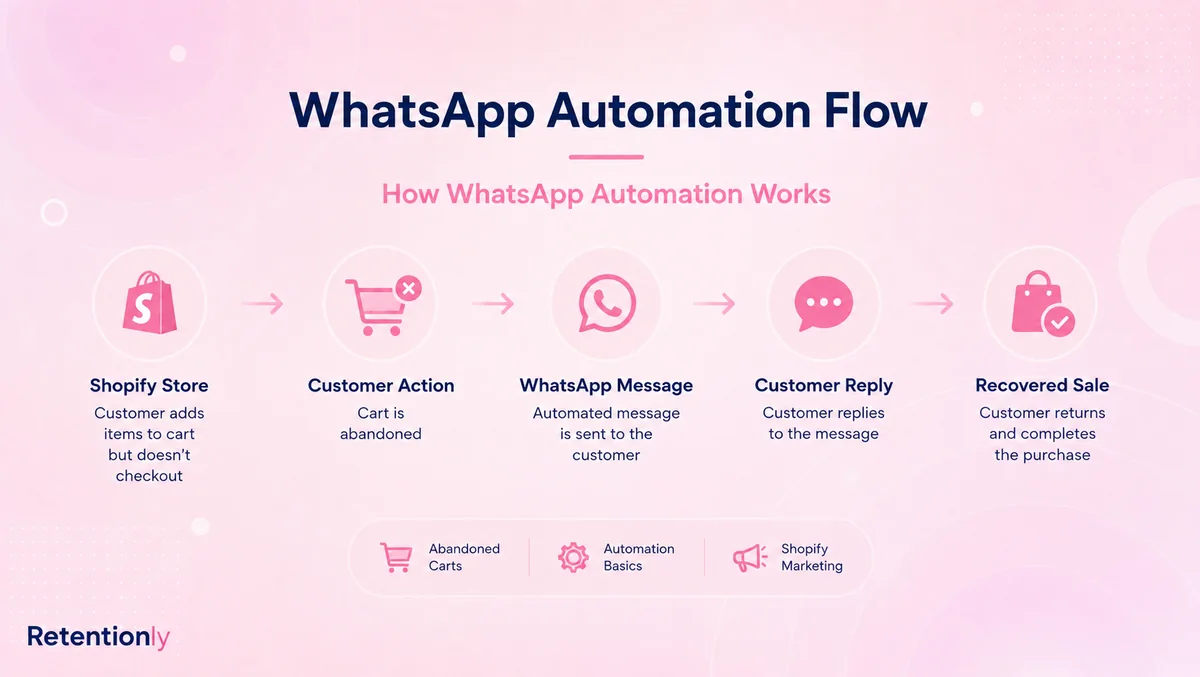
| Abandoned checkout | Checkout created but not completed | Needs checkout link, delay, stop-on-purchase, and recovery reporting |
| COD confirmation | COD order placed | Needs order data, confirmation buttons or replies, fulfillment hold logic |
| Order update | Order placed, fulfilled, shipped, or delivered | Needs order number, tracking link, status, and support context |
| Review request | Delivered order plus usage delay | Needs review link, product context, and issue-handling fallback |
| Reorder reminder | Product purchase cycle reaches expected refill window | Needs purchase history, timing, and repeat-purchase metric |
| Winback | Customer inactive after expected buying cycle | Needs segment, offer rule, suppression, and revenue tracking |
The WhatsApp Business Platform supports business-initiated messages after opt-in, usually through approved message templates. Pricing can also depend on message category and market, so a store should understand whether the message is marketing, utility, authentication, or service before forecasting costs.
For Shopify teams, the API is rarely the full solution by itself. It is the messaging rail. The workflow still needs Shopify data, template handling, timing, stop rules, reply handoff, and reporting.
Build One Automated WhatsApp Workflow
Use this sequence before launching any automated WhatsApp message.
1. Name The Customer Moment
Be specific. "Send automation" is too vague.
Better workflow names:
Abandoned checkout first reminder.
COD order confirmation.
Shipped order update.
Delivery issue check-in.
Review request after delivery.
Reorder reminder for consumable products.
Winback message for inactive customers.
The name should make the trigger and purpose obvious.
2. Define The Trigger
The trigger is the event that starts the workflow.
For Shopify stores, strong triggers usually come from real customer or order behavior:
| Trigger | Example automation |
|---|---|
| Checkout abandoned | Send a cart reminder with checkout link |
| COD order created | Ask the customer to confirm or cancel |
| Fulfillment created | Send shipping or tracking update |
| Order delivered | Ask if everything arrived correctly, then request review |
| Product purchase cycle reached | Send reorder reminder |
| Customer inactive | Send winback message |
Avoid weak triggers such as "customer exists in our database" or "we have a phone number." They do not prove relevance.
3. Check Consent And Message Type
Before sending, ask two questions.
| Question | Why it matters |
|---|---|
| Did the customer opt in for this kind of WhatsApp message? | Order updates, product alerts, and promotions are different expectations |
| Is this a customer-initiated service reply or a business-initiated message? | Business-initiated messages often need approved templates and the right category |
If the customer just messaged you, a service reply may be appropriate during the customer service window. If the store starts the conversation later, use the proper platform route and template process.
Do not hide a promotion inside a utility update. If the message is about an offer, make that clear and send it only to customers who should receive it.
Write The Message Around The Job
Good automated messages are short, specific, and tied to the customer moment.
| Workflow | Message example |
|---|---|
| Abandoned checkout | Hi [first_name], your [store_name] checkout is still saved. Complete your order here: [checkout_link]. Reply if you need help before ordering. |
| COD confirmation | Hi [first_name], please confirm COD order [order_number] for [order_total]. Reply 1 to confirm or 2 to cancel. |
| Order update | Hi [first_name], your order [order_number] has shipped. Track it here: [tracking_link]. Reply if anything looks wrong. |
| Review request | Hi [first_name], hope you are enjoying [product_name]. Could you share a quick review here? [review_link] |
| Reorder reminder | Hi [first_name], it may be time to reorder [product_name]. Restock here if you need it: [product_link]. |
| Winback | Hi [first_name], it has been a while since your last [store_name] order. Here are a few new picks based on what you bought before: [collection_link]. |
For more Shopify-specific copy, use WhatsApp Message Templates for Shopify Retention Flows.
Add Timing And Stop Rules
Timing decides whether automation feels useful or annoying.
| Workflow | Better timing | Stop when |
|---|---|---|
| Abandoned checkout | After a short delay, not instantly | Customer purchases, checkout expires, customer replies negatively |
| COD confirmation | Soon after order creation, before fulfillment | Customer confirms, cancels, pays prepaid, or order is cancelled |
| Shipping update | When tracking is available | Delivery completes or support issue opens |
| Review request | After delivery plus a usage delay | Customer reports an issue, submits review, opts out |
| Reorder reminder | Near the expected refill window | Customer reorders, product is unavailable, customer opts out |
| Winback | After the normal buying cycle has passed | Customer purchases, replies, opts out, or enters another active campaign |
Stop rules matter as much as triggers. A store that sends a cart reminder after the customer already purchased looks careless. A store that asks for a review while delivery is delayed creates support friction.
Decide Who Handles Replies
Automated messages create real conversations.
Before launch, decide:
Where replies appear.
Which team owns them.
Whether order and customer context is visible.
Which replies should pause the automation.
Which replies need a human immediately.
Whether labels or tags identify the source workflow.
This is especially important for revenue workflows. A shopper who replies to an abandoned checkout message may have a product objection. A COD customer may need address correction. A review-request reply may reveal a delivery or product issue.
Automation should reduce repeated work, not hide important customer signals.
Test Before Going Live
Use a small checklist before turning on the workflow.
| Test | What to confirm |
|---|---|
| Trigger test | The message starts only from the intended event |
| Variable test | Name, product, order number, amount, and link render correctly |
| Template test | The template category and copy match the message purpose |
| Link test | Checkout, tracking, payment, review, or product links work |
| Stop-rule test | The message stops after purchase, cancellation, reply, or opt-out |
| Reply test | Replies reach the right inbox or owner |
| Metric test | The team can see the outcome that matters |
Do not skip the stop-rule test. Most awkward WhatsApp automations fail because they keep sending after the customer state changed.
Measure More Than Delivery
Delivery is not the goal. The goal depends on the workflow.
| Workflow | Useful metrics |
|---|---|
| Abandoned checkout | Recovered orders, recovered revenue, click rate, reply rate, opt-outs |
| COD confirmation | Confirmed orders, cancelled orders, no-response rate, RTO reduction |
| Order updates | Delivery support tickets, tracking clicks, reply volume |
| Review request | Reviews collected, issue replies, reminder conversion |
| Reorder reminder | Repeat orders, revenue per recipient, timing accuracy |
| Winback | Reactivated customers, revenue, margin, opt-outs, reply quality |
Also watch negative signals: opt-outs, blocks, angry replies, failed sends, and support overload. If a flow creates more customer friction than value, fix the audience, timing, copy, or handoff before scaling.
What To Automate First In A Shopify Store
Most stores should not start with ten automations. Start with the workflows closest to customer intent.
| Priority | Workflow | Why it comes early |
|---|---|---|
| 1 | Abandoned checkout | High purchase intent and direct revenue impact |
| 2 | Order and shipping updates | Reduces uncertainty and support questions |
| 3 | COD confirmation | Protects fulfillment cost where COD is common |
| 4 | Review request | Builds trust and catches issues after delivery |
| 5 | Reorder reminder | Works well for consumables and repeat-purchase categories |
| 6 | Winback | Useful after the store understands buying cycles |
| 7 | Upsell or cross-sell | Better after purchase timing and product affinity are clear |
That sequence keeps automation tied to real Shopify events instead of broad promotional blasting.
Where Retentionly Fits
Retentionly helps Shopify stores send automated WhatsApp messages from customer and order events without building directly on the WhatsApp API.
The point is not only sending messages. The point is owning the workflow:
Trigger from Shopify behavior.
Use relevant WhatsApp templates.
Send at the right time.
Stop when the customer state changes.
Route replies to the right place.
Measure recovered revenue, repeat purchase, reviews, or support impact.
That is the difference between a basic auto reply and a revenue automation system.
If you run a Shopify store and want WhatsApp flows for abandoned checkout, COD confirmation, order updates, reviews, winback, reorder reminders, and upsells, Install Free on Shopify and start with the highest-intent workflow first.
Quick FAQs
Can I send automated messages on WhatsApp for free?
You can use basic WhatsApp Business app features such as greeting messages, away messages, and quick replies without building an API setup. For scalable business-initiated messages, templates, Shopify triggers, teams, and reporting, you usually need an API-backed provider or app, and message costs may apply.
Can WhatsApp Business send automatic replies?
Yes. The WhatsApp Business app can send simple greeting and away messages, and it supports quick replies. Those are useful for manual conversation management, but they are not the same as Shopify-triggered automation for orders, carts, reviews, and repeat purchases.
Do automated WhatsApp messages need templates?
Many business-initiated messages on the WhatsApp Business Platform use approved templates. The exact requirement depends on how the conversation started, the message type, and the platform rules. For ecommerce, plan templates for proactive order, marketing, reminder, and retention workflows.
What is the best first automated WhatsApp message for Shopify?
Abandoned checkout recovery is usually the strongest first revenue workflow because the customer already showed purchase intent. Order updates and COD confirmation are also strong early automations because they reduce uncertainty and support load.
Is WhatsApp automation the same as bulk messaging?
No. Automation is usually triggered by a customer or store event. Bulk messaging sends one campaign to many recipients. A Shopify store can use both, but automated lifecycle flows should not be treated like broad promotional blasts.